ERP Field Mapping
Before the platform can compare an extracted value with an ERP value, it needs to know which ERP column corresponds to each extracted field. Field mapping defines that bridge.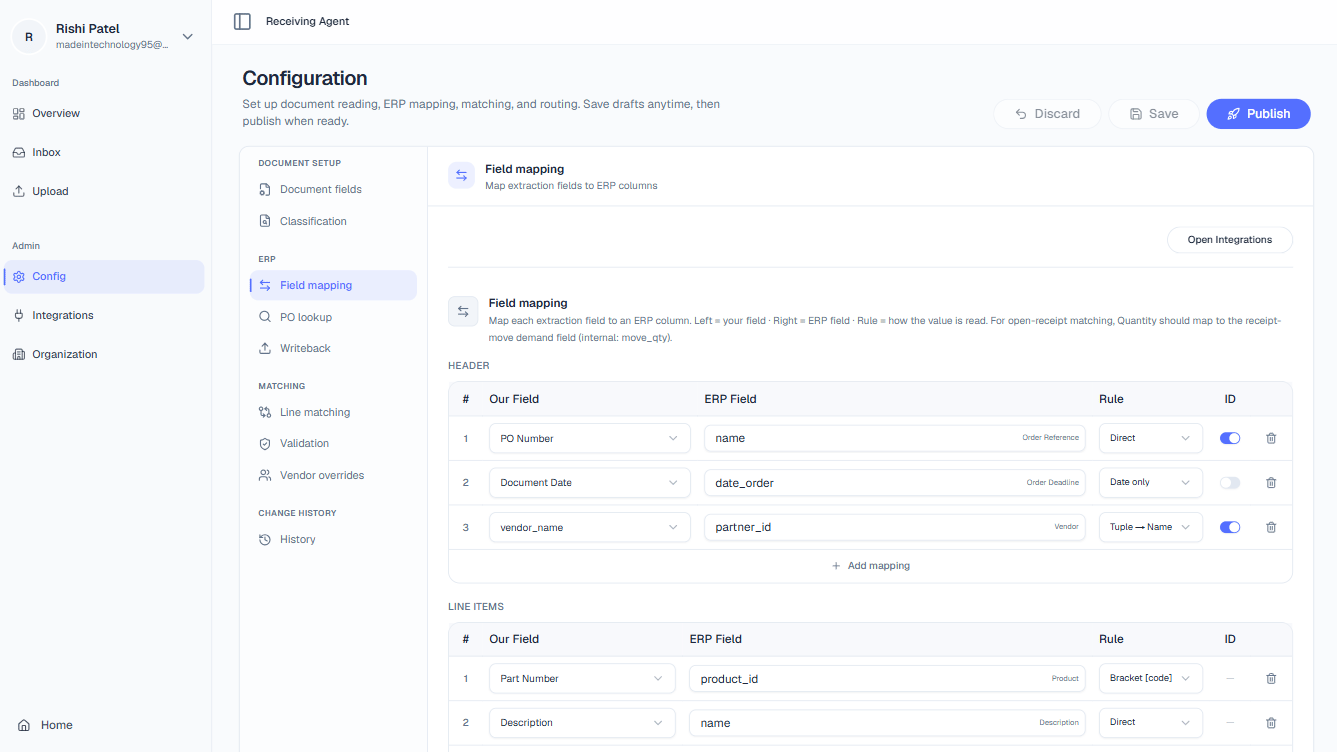
name) and Line Item Fields (row-level, e.g., Part Number → product_id). Each mapping is expressed as:
Our Field → ERP Field
Transformation Rules
Many ERP fields store data in a format that differs from how it appears on a packing slip. Transformation rules handle the conversion automatically.Is Identifier (ID Checkbox)
Checking Is Identifier on a header field marks it as a PO lookup key, the value the platform will use when querying your ERP to find the matching purchase order. You must mark at least one header field as an identifier for automatic PO lookup to work.ERP Lookup Strategies
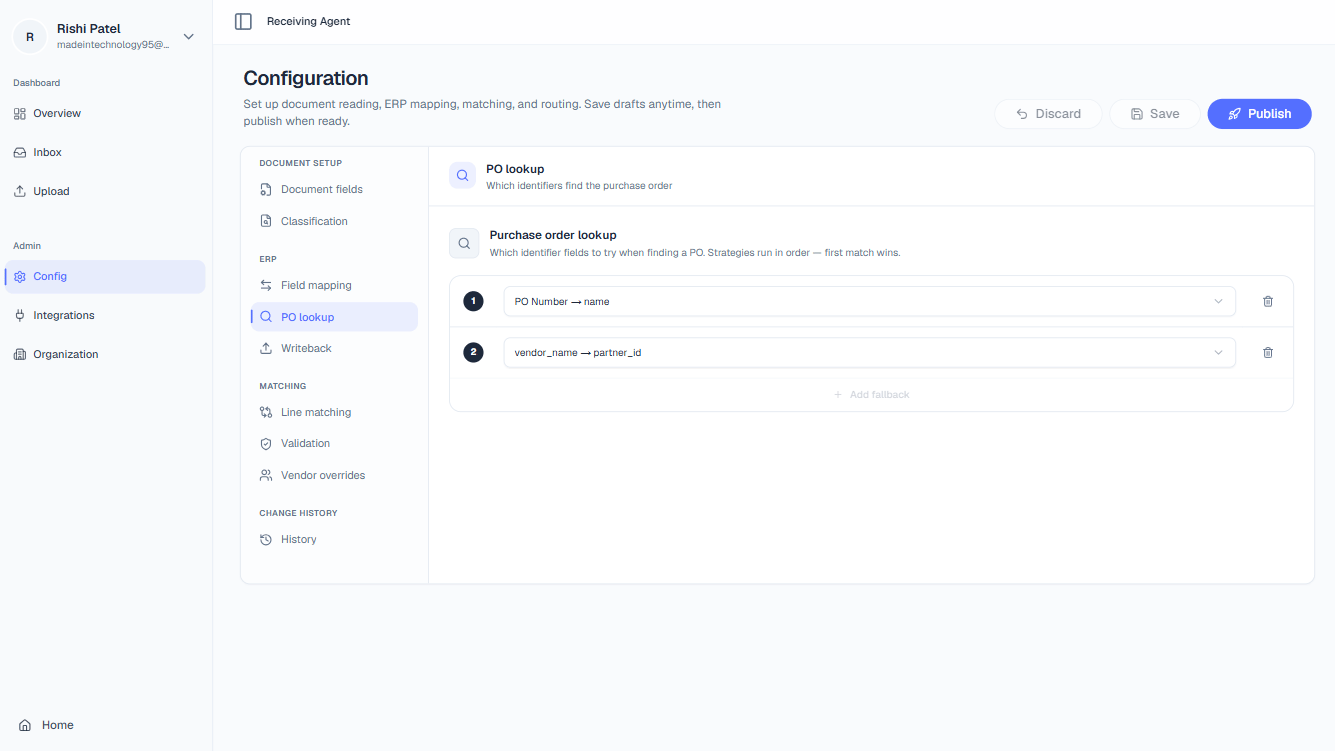
Adding a sensible fallback lookup strategy can significantly reduce the number of documents routed to human review simply because a vendor printed a reference number in an unexpected field.
Line Matching
Line matching (also called pairing) determines how each extracted document line is linked to a specific ERP purchase order line. Open the Match tab and configure the following: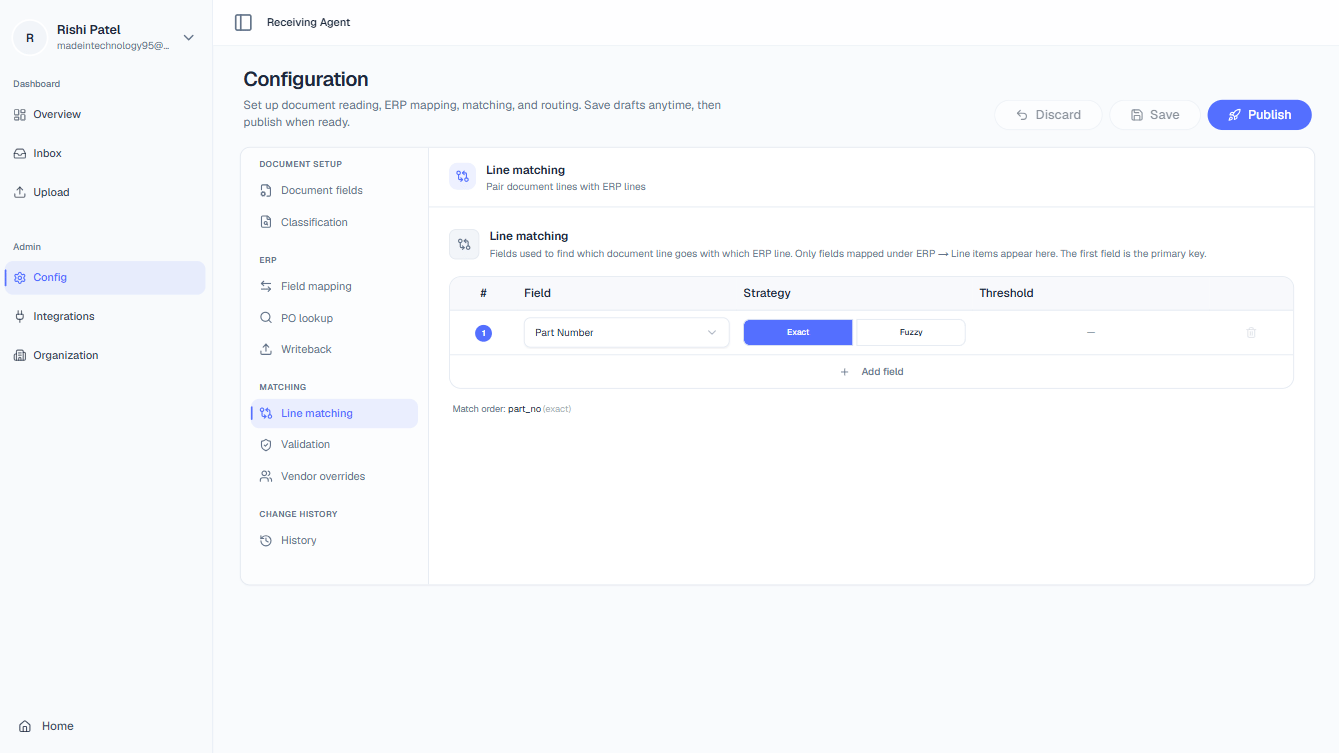
Exact Matching
Strings must match perfectly, character for character, case-insensitive. Use Exact matching for structured codes (part numbers, SKUs) where any deviation indicates a genuine discrepancy that should be flagged.Fuzzy Matching
Fuzzy matching uses similarity scoring to tolerate minor differences between the extracted value and the ERP value. Use the similarity slider (range: 40%–100%) to set the minimum acceptable score. A score below the threshold will fail the match and trigger review.- Higher threshold (e.g., 90%) — tight tolerance, fewer false positives, more conservative.
- Lower threshold (e.g., 60%) — more lenient, handles heavy abbreviation but risks incorrect pairing.
Field Validation
Field validation runs after line pairing is complete and checks whether the matched values are acceptable. For each mapped field you can configure: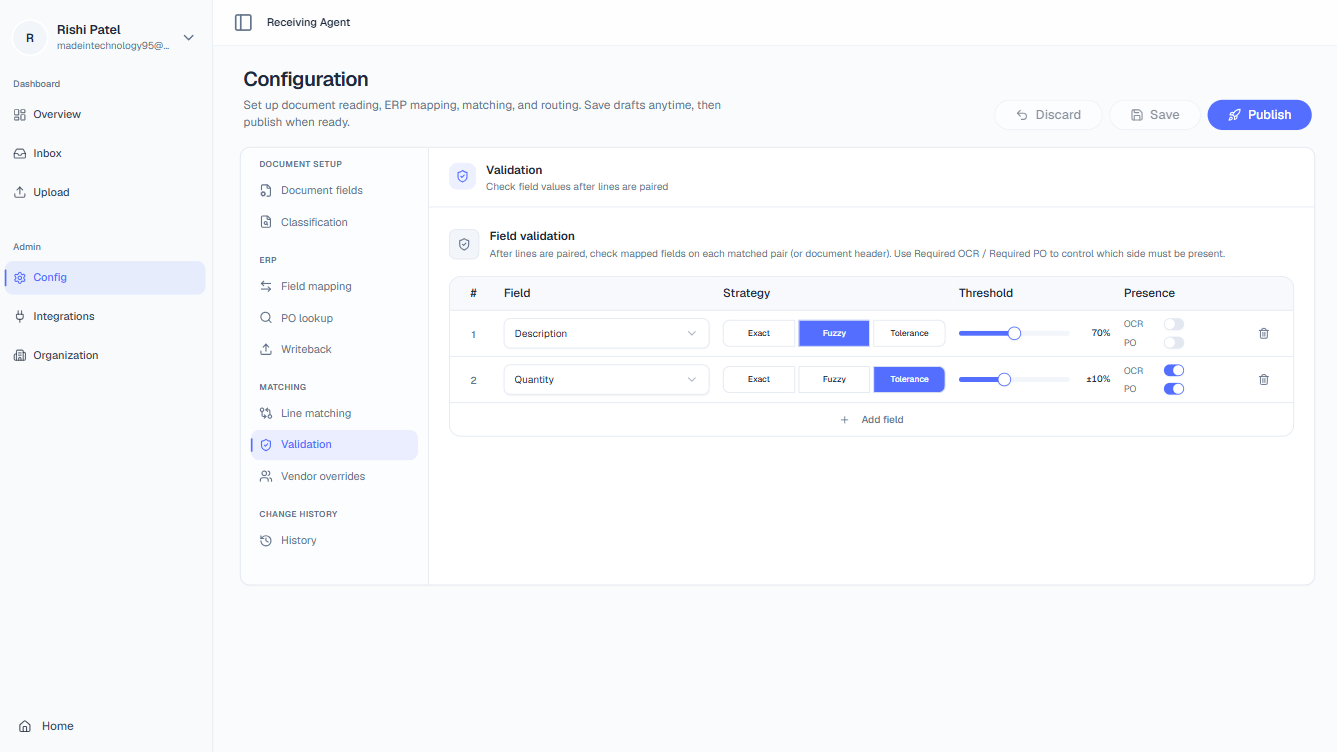
Exact / Fuzzy
The same Exact vs. Fuzzy logic applies to validation as to matching, you can validate a description field with fuzzy similarity and a code field with exact equality.Tolerance (Numbers Only)
For numeric fields like Quantity or Unit Price, set a ± percentage tolerance. For example, a tolerance of5% means a shipped quantity up to 5% above or below the PO quantity will still pass validation automatically.
This is particularly useful for bulk goods (lumber, fabric, chemicals) where vendors commonly ship marginally over or under the ordered amount.
Presence Flags
Vendor Overrides
Global validation rules apply to every document by default, but individual suppliers often have agreed-upon terms that differ from your standard policy. Vendor Overrides let you patch specific validation rules for a named supplier without changing your global config.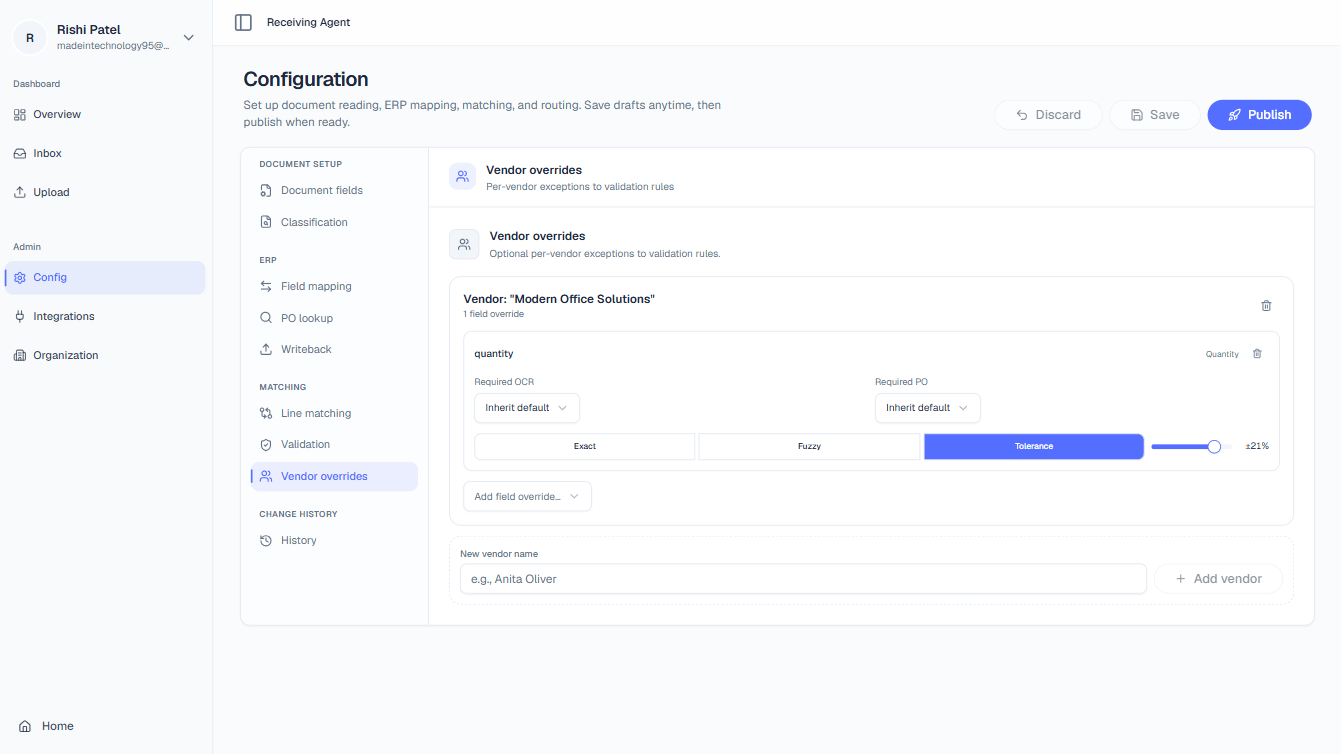
- Vendor:
Acme Corp - Override: Quantity tolerance →
±10% - Effect: Documents where the extracted Vendor Name matches
Acme Corpwill use a 10% quantity tolerance instead of the global setting.
Vendor name matching uses the same fuzzy logic configured in your line matching settings, so minor variations in how the supplier name is printed will still resolve to the correct override.
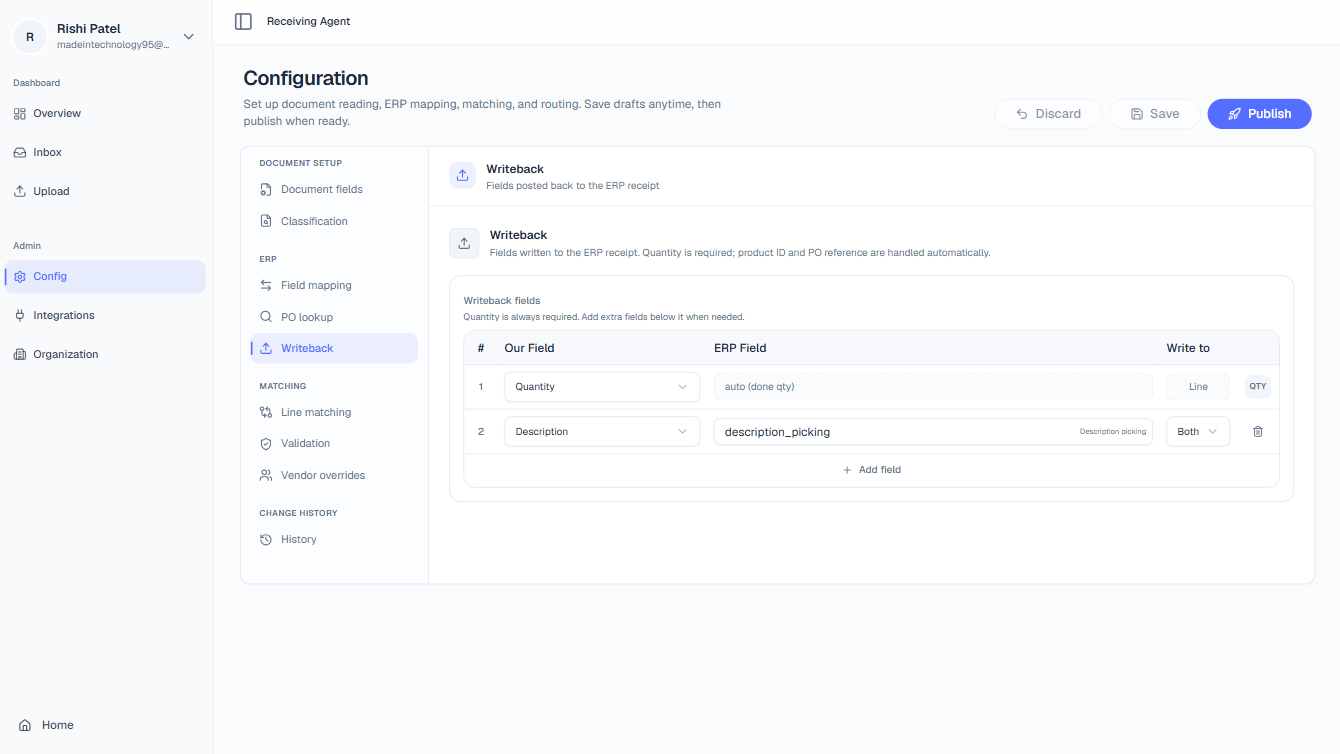
Writeback Configuration
Once a receipt is approved, the platform posts data back to your ERP. Writeback config, found at the bottom of the ERP tab, controls exactly what gets written and where.