> ## Documentation Index
> Fetch the complete documentation index at: https://docs.thickdot.com/llms.txt
> Use this file to discover all available pages before exploring further.
# Manage Your Document Inbox and Receiving Review Queue
> Filter, search, and triage every ingested document using quick-filter stat cards, status chips, and the color-coded document list.
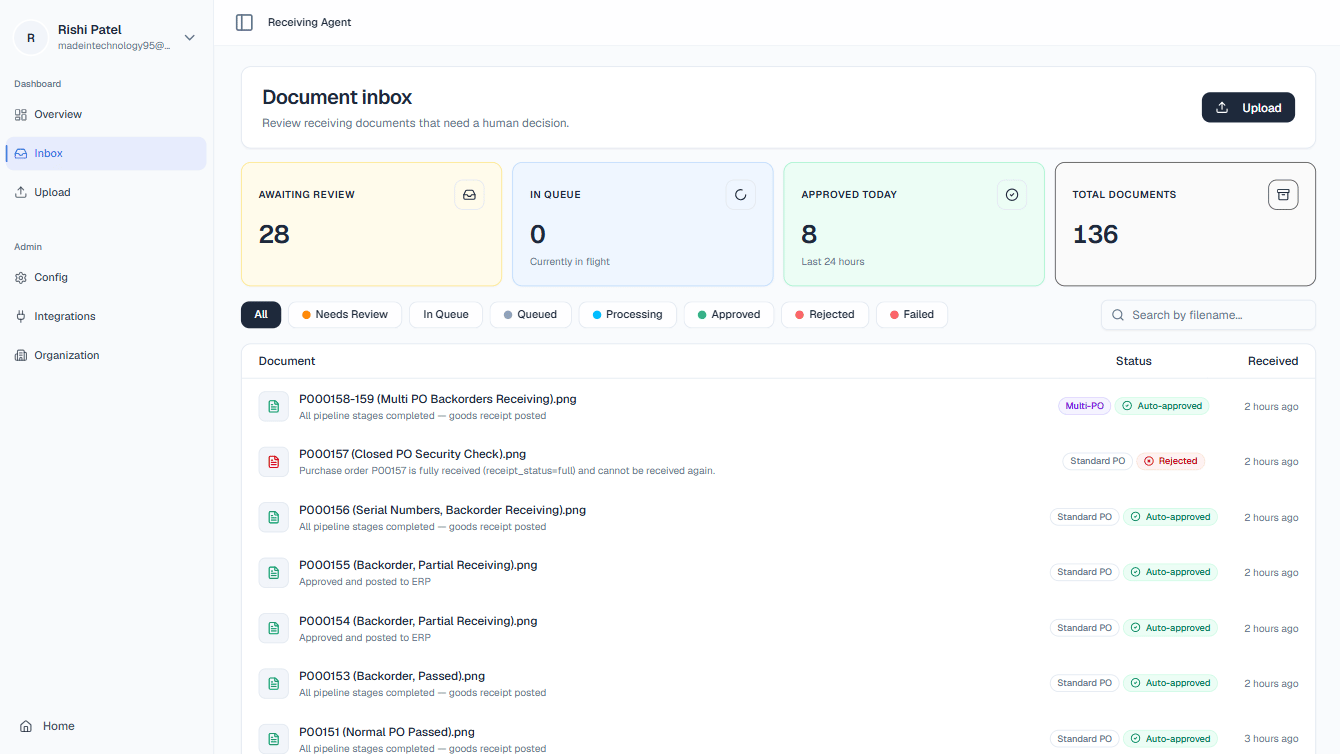
The Document Inbox is your daily workflow hub. Every document that has entered the platform, whether it's still being processed, waiting for your review, already approved, or rejected, lives here with its current status. Rather than checking individual documents one by one, the Inbox lets you filter your entire document pool down to exactly what needs your attention right now, so you can move through your review queue efficiently and keep your ERP data current.
Navigate to the Inbox by clicking **Inbox** in the main navigation.
 ## Quick-Filter Cards
Four stat cards run across the top of the Inbox. Each card shows a live count and acts as a single-click filter, clicking a card instantly narrows the document list below to that category.
Your primary to-do list. These are documents the AI has finished processing but flagged for a human decision, typically due to a quantity discrepancy, a low-confidence extraction, or an unmatched PO. Start here every morning.
Documents the AI pipeline is actively working through right now. These are not yet ready for review. If this number stays unexpectedly high for an extended period, check with your administrator for pipeline issues.
Documents that have been approved and had their goods receipts written back to your ERP in the last 24 hours, both auto-approved by the AI and manually approved by a reviewer. Use this as a quick daily throughput gauge.
The count of all documents in the system regardless of status. Clicking this card clears all active filters and search terms, returning the list to its default unfiltered view.
## Filtering and Search
When you need more precision than the quick-filter cards offer, use the status chips and search bar to zero in on specific documents.
### Status Filter Chips
A row of filter chips sits above the document list. Click any chip to show only documents in that state. The available statuses are:
| Chip | What it shows |
| ---------------- | ------------------------------------------------- |
| **All** | Every document, no filter applied |
| **Needs Review** | AI-flagged documents awaiting a human decision |
| **In Queue** | Documents waiting to enter the AI pipeline |
| **Queued** | Documents accepted and scheduled for processing |
| **Processing** | Documents actively moving through pipeline stages |
| **Approved** | Documents approved and written back to ERP |
| **Rejected** | Documents rejected by a reviewer |
| **Failed** | Documents that encountered a pipeline error |
Only one chip can be active at a time. Click **All** to clear the filter.
### Search Bar
The search bar performs a client-side search across the filenames of all documents currently loaded in the list. Type any part of a filename to narrow results instantly, no page reload required. Combine the search bar with an active status chip to find, for example, a specific vendor's file among all your **Needs Review** documents.
## Reading the Document List
Each row in the document list represents one uploaded file. The columns give you the context to prioritize and triage without opening every document individually.
| Column | What it shows |
| --------------------------- | --------------------------------------------------------------------------------------------------------------------------------------------------------------------------------- |
| **Document Name & Message** | The original filename of the uploaded file, plus a short status message explaining its current state. For example, *"Quantity discrepancy on Line 2"* or *"No matching PO found"* |
| **Context Badges** | Small labels indicating vendor format, document type, or other metadata tags assigned during extraction |
| **Status Badge** | A color-coded label showing the document's current pipeline state (see color guide below) |
| **Received Time** | The timestamp showing when the document entered the system, displayed as a relative value (e.g., *"14 minutes ago"*) |
Click any row to open the full **Document Details** page for that document, where you can inspect extracted data, review the AI's matching results, and make an approve or reject decision.
## Status Color Guide
Status badges are color-coded so you can assess a document's state at a glance, even before reading the label text.
| Color | Statuses | What it means |
| --------------------- | --------------------- | --------------------------------------------------------------- |
| 🔵 **Blue / Purple** | Processing, In Flight | The AI pipeline is actively working on this document |
| 🟠 **Amber / Orange** | Needs Review | Action required, a human must review and decide |
| 🟢 **Green** | Approved, Completed | The document has been approved and the receipt posted |
| 🔴 **Red** | Rejected, Failed | The document was rejected by a reviewer or encountered an error |
Start each day by clicking the **Awaiting Review** card to isolate all action-required documents. Work through the amber-badged rows top to bottom, opening each one to make your approve or reject decision. Clearing this queue daily ensures your ERP goods receipts stay current and nothing sits unresolved overnight.
## Quick-Filter Cards
Four stat cards run across the top of the Inbox. Each card shows a live count and acts as a single-click filter, clicking a card instantly narrows the document list below to that category.
Your primary to-do list. These are documents the AI has finished processing but flagged for a human decision, typically due to a quantity discrepancy, a low-confidence extraction, or an unmatched PO. Start here every morning.
Documents the AI pipeline is actively working through right now. These are not yet ready for review. If this number stays unexpectedly high for an extended period, check with your administrator for pipeline issues.
Documents that have been approved and had their goods receipts written back to your ERP in the last 24 hours, both auto-approved by the AI and manually approved by a reviewer. Use this as a quick daily throughput gauge.
The count of all documents in the system regardless of status. Clicking this card clears all active filters and search terms, returning the list to its default unfiltered view.
## Filtering and Search
When you need more precision than the quick-filter cards offer, use the status chips and search bar to zero in on specific documents.
### Status Filter Chips
A row of filter chips sits above the document list. Click any chip to show only documents in that state. The available statuses are:
| Chip | What it shows |
| ---------------- | ------------------------------------------------- |
| **All** | Every document, no filter applied |
| **Needs Review** | AI-flagged documents awaiting a human decision |
| **In Queue** | Documents waiting to enter the AI pipeline |
| **Queued** | Documents accepted and scheduled for processing |
| **Processing** | Documents actively moving through pipeline stages |
| **Approved** | Documents approved and written back to ERP |
| **Rejected** | Documents rejected by a reviewer |
| **Failed** | Documents that encountered a pipeline error |
Only one chip can be active at a time. Click **All** to clear the filter.
### Search Bar
The search bar performs a client-side search across the filenames of all documents currently loaded in the list. Type any part of a filename to narrow results instantly, no page reload required. Combine the search bar with an active status chip to find, for example, a specific vendor's file among all your **Needs Review** documents.
## Reading the Document List
Each row in the document list represents one uploaded file. The columns give you the context to prioritize and triage without opening every document individually.
| Column | What it shows |
| --------------------------- | --------------------------------------------------------------------------------------------------------------------------------------------------------------------------------- |
| **Document Name & Message** | The original filename of the uploaded file, plus a short status message explaining its current state. For example, *"Quantity discrepancy on Line 2"* or *"No matching PO found"* |
| **Context Badges** | Small labels indicating vendor format, document type, or other metadata tags assigned during extraction |
| **Status Badge** | A color-coded label showing the document's current pipeline state (see color guide below) |
| **Received Time** | The timestamp showing when the document entered the system, displayed as a relative value (e.g., *"14 minutes ago"*) |
Click any row to open the full **Document Details** page for that document, where you can inspect extracted data, review the AI's matching results, and make an approve or reject decision.
## Status Color Guide
Status badges are color-coded so you can assess a document's state at a glance, even before reading the label text.
| Color | Statuses | What it means |
| --------------------- | --------------------- | --------------------------------------------------------------- |
| 🔵 **Blue / Purple** | Processing, In Flight | The AI pipeline is actively working on this document |
| 🟠 **Amber / Orange** | Needs Review | Action required, a human must review and decide |
| 🟢 **Green** | Approved, Completed | The document has been approved and the receipt posted |
| 🔴 **Red** | Rejected, Failed | The document was rejected by a reviewer or encountered an error |
Start each day by clicking the **Awaiting Review** card to isolate all action-required documents. Work through the amber-badged rows top to bottom, opening each one to make your approve or reject decision. Clearing this queue daily ensures your ERP goods receipts stay current and nothing sits unresolved overnight.