> ## Documentation Index
> Fetch the complete documentation index at: https://docs.thickdot.com/llms.txt
> Use this file to discover all available pages before exploring further.
# Manage Config Versions, History, and the Audit Log
> Publish configuration snapshots, roll back to any previous version, and use the audit log to track every change made to your platform settings.
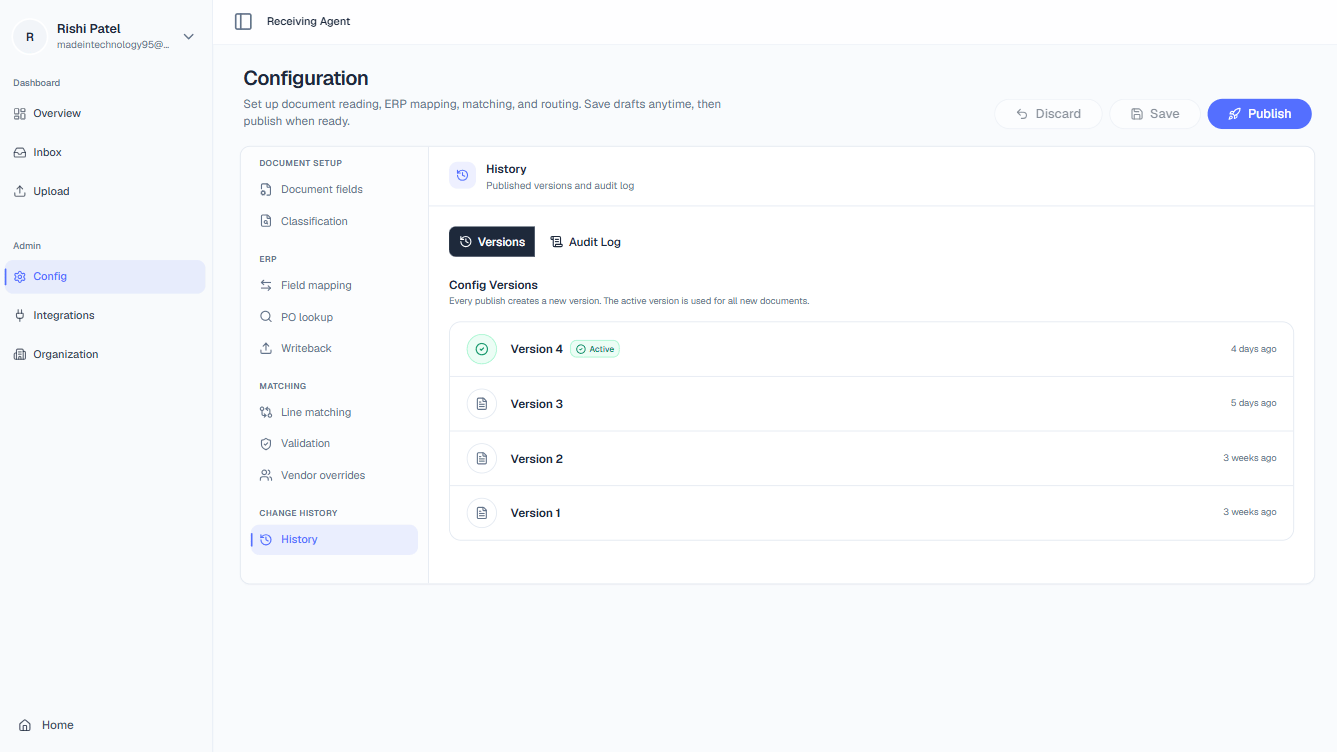 Every change you make in Admin > Config is staged until you explicitly publish it. When you click **Publish**, the platform captures a complete snapshot of your entire configuration (extraction fields, matching rules, routing policy, ERP mapping, and all) and saves it as a new numbered version. That version immediately becomes active for all incoming documents. Because every version is preserved, you can roll back to any point in your history if a rule change produces unintended consequences. Access these features at **Admin > Config > Versions**.
***
## Publishing a Configuration
Navigate to **Admin > Config** and update any settings across the Extraction, Context, ERP, Match, or Route tabs. Changes remain in a draft state and do not affect live document processing until you publish.
Before publishing, scan through the affected tabs to confirm every change is intentional. Pay particular attention to tolerance values, required flags, and partial receipt policy, as these have the most direct impact on automation rates.
Click the **Publish** button at the top of the Config page. The platform validates your configuration for completeness, then saves a new numbered version snapshot (e.g., Version 13).
As soon as publishing completes, the new version is marked **Active** and all documents that arrive from that moment onward are processed using the updated rules. Documents already in progress continue to completion under the version that was active when they were received.
Publishing takes effect immediately for all new incoming documents. There is no staging or gradual rollout. If you are testing a significant rule change — for example, tightening a quantity tolerance or adding a new required field — consider publishing during a low-volume period (overnight or on a weekend) so that any unintended routing behaviour affects fewer documents before you can investigate.
***
## Rolling Back to a Previous Version
If a published configuration causes unexpected results, such as a spike in auto-rejections or documents being routed to the wrong queue, you can revert to any earlier version without needing to manually undo individual settings.
To roll back:
1. Open **Admin > Config > Versions**.
2. Browse the version history list. Each entry shows the version number, the user who published it, and the timestamp.
3. Click the version you want to restore.
4. Click **Set as Active**. The selected version is immediately reactivated and becomes the new active configuration.
Rolling back does not delete newer versions. Your version history remains intact, so you can re-activate a more recent version at any time or use newer versions as a reference while you investigate what went wrong.
***
## Audit Log
The audit log gives you a complete, tamper-evident history of every configuration change made by any user on your account, not just published versions, but every individual edit. Use it to understand exactly what changed, who changed it, and when.
Access the audit log from the **Versions** tab by clicking **View Audit Log**.
### Filter by Action Type
| Action Type | Meaning |
| --------------------- | ---------------------------------------------------------------------------------------------------- |
| **CONFIG\_UPDATED** | A specific field or rule was modified in the configuration editor (draft change, not yet published). |
| **CONFIG\_PUBLISHED** | A configuration version was published and became the active version for live document processing. |
### Example Audit Log Entries
| Action | User | Timestamp | Details |
| ----------------- | --------------------------------------------- | ---------------- | ------------------------------------------- |
| CONFIG\_PUBLISHED | [jane@example.com](mailto:jane@example.com) | 2024-03-15 09:32 | Version 12 published |
| CONFIG\_UPDATED | [admin@example.com](mailto:admin@example.com) | 2024-03-14 16:45 | Match tolerance changed to 5% |
| CONFIG\_UPDATED | [admin@example.com](mailto:admin@example.com) | 2024-03-14 16:40 | Partial receipt policy set to Allow Partial |
| CONFIG\_PUBLISHED | [jane@example.com](mailto:jane@example.com) | 2024-03-10 11:15 | Version 11 published |
| CONFIG\_UPDATED | [ops@example.com](mailto:ops@example.com) | 2024-03-09 14:22 | PO Number field marked as Required |
The audit log is your first stop during an incident investigation. If your automation rate drops suddenly or documents start routing unexpectedly, filter the audit log by **CONFIG\_PUBLISHED** to find the most recent version change, then compare the publication timestamp against the time the anomaly started. In most cases, you'll find a correlated config change within minutes.
Every change you make in Admin > Config is staged until you explicitly publish it. When you click **Publish**, the platform captures a complete snapshot of your entire configuration (extraction fields, matching rules, routing policy, ERP mapping, and all) and saves it as a new numbered version. That version immediately becomes active for all incoming documents. Because every version is preserved, you can roll back to any point in your history if a rule change produces unintended consequences. Access these features at **Admin > Config > Versions**.
***
## Publishing a Configuration
Navigate to **Admin > Config** and update any settings across the Extraction, Context, ERP, Match, or Route tabs. Changes remain in a draft state and do not affect live document processing until you publish.
Before publishing, scan through the affected tabs to confirm every change is intentional. Pay particular attention to tolerance values, required flags, and partial receipt policy, as these have the most direct impact on automation rates.
Click the **Publish** button at the top of the Config page. The platform validates your configuration for completeness, then saves a new numbered version snapshot (e.g., Version 13).
As soon as publishing completes, the new version is marked **Active** and all documents that arrive from that moment onward are processed using the updated rules. Documents already in progress continue to completion under the version that was active when they were received.
Publishing takes effect immediately for all new incoming documents. There is no staging or gradual rollout. If you are testing a significant rule change — for example, tightening a quantity tolerance or adding a new required field — consider publishing during a low-volume period (overnight or on a weekend) so that any unintended routing behaviour affects fewer documents before you can investigate.
***
## Rolling Back to a Previous Version
If a published configuration causes unexpected results, such as a spike in auto-rejections or documents being routed to the wrong queue, you can revert to any earlier version without needing to manually undo individual settings.
To roll back:
1. Open **Admin > Config > Versions**.
2. Browse the version history list. Each entry shows the version number, the user who published it, and the timestamp.
3. Click the version you want to restore.
4. Click **Set as Active**. The selected version is immediately reactivated and becomes the new active configuration.
Rolling back does not delete newer versions. Your version history remains intact, so you can re-activate a more recent version at any time or use newer versions as a reference while you investigate what went wrong.
***
## Audit Log
The audit log gives you a complete, tamper-evident history of every configuration change made by any user on your account, not just published versions, but every individual edit. Use it to understand exactly what changed, who changed it, and when.
Access the audit log from the **Versions** tab by clicking **View Audit Log**.
### Filter by Action Type
| Action Type | Meaning |
| --------------------- | ---------------------------------------------------------------------------------------------------- |
| **CONFIG\_UPDATED** | A specific field or rule was modified in the configuration editor (draft change, not yet published). |
| **CONFIG\_PUBLISHED** | A configuration version was published and became the active version for live document processing. |
### Example Audit Log Entries
| Action | User | Timestamp | Details |
| ----------------- | --------------------------------------------- | ---------------- | ------------------------------------------- |
| CONFIG\_PUBLISHED | [jane@example.com](mailto:jane@example.com) | 2024-03-15 09:32 | Version 12 published |
| CONFIG\_UPDATED | [admin@example.com](mailto:admin@example.com) | 2024-03-14 16:45 | Match tolerance changed to 5% |
| CONFIG\_UPDATED | [admin@example.com](mailto:admin@example.com) | 2024-03-14 16:40 | Partial receipt policy set to Allow Partial |
| CONFIG\_PUBLISHED | [jane@example.com](mailto:jane@example.com) | 2024-03-10 11:15 | Version 11 published |
| CONFIG\_UPDATED | [ops@example.com](mailto:ops@example.com) | 2024-03-09 14:22 | PO Number field marked as Required |
The audit log is your first stop during an incident investigation. If your automation rate drops suddenly or documents start routing unexpectedly, filter the audit log by **CONFIG\_PUBLISHED** to find the most recent version change, then compare the publication timestamp against the time the anomaly started. In most cases, you'll find a correlated config change within minutes.