> ## Documentation Index
> Fetch the complete documentation index at: https://docs.thickdot.com/llms.txt
> Use this file to discover all available pages before exploring further.
# Configure Extraction Fields, Types, and Context Rules
> Define which fields the AI extracts from each document, set field types and required flags, and create PO context rules for multi-PO and blanket releases.
Extraction config is how you teach the AI Brain what to look for on your incoming packing slips and delivery documents. Every field you define, whether it appears once on the document header or repeats across dozens of line items, becomes an instruction that shapes what gets extracted, how confidently, and what happens when the AI can't find it. Access these settings at **Admin > Config**, then open the **Extraction** and **Context** tabs.
***
## Header Fields vs. Line Item Fields
The platform distinguishes between two categories of extractable fields based on where they appear in a document.
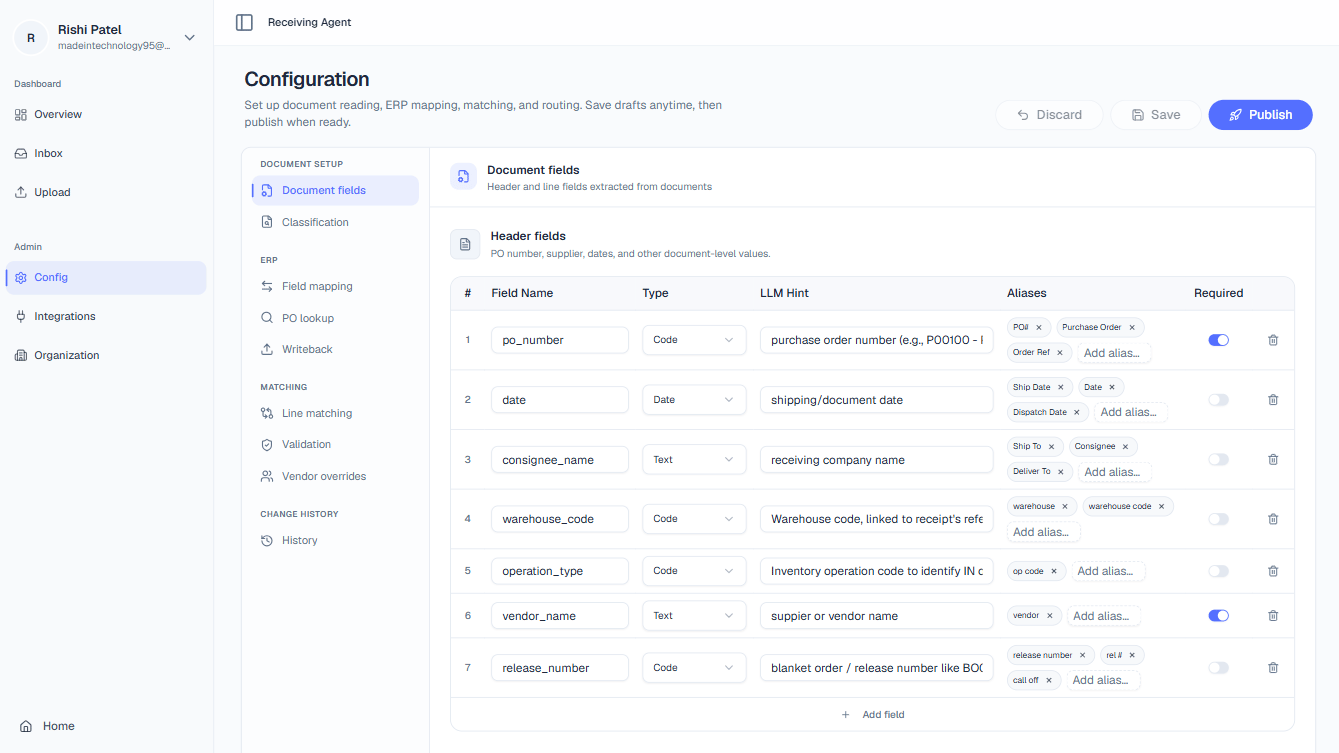
**Header fields** appear exactly once per document. They describe the shipment as a whole rather than an individual product line. Common header fields include:
* **PO Number** — the purchase order reference for the entire delivery
* **Vendor Name** — the supplier who sent the shipment
* **Ship Date** — the date the goods were dispatched
 **Line item fields** repeat once per row in the document's line table. Each row typically represents a distinct product. Common line item fields include:
* **Part Number** — the supplier or internal SKU for the product
* **Quantity** — how many units were shipped for that line
* **Unit of Measure** — the unit used (each, kg, box, etc.)
**Line item fields** repeat once per row in the document's line table. Each row typically represents a distinct product. Common line item fields include:
* **Part Number** — the supplier or internal SKU for the product
* **Quantity** — how many units were shipped for that line
* **Unit of Measure** — the unit used (each, kg, box, etc.)
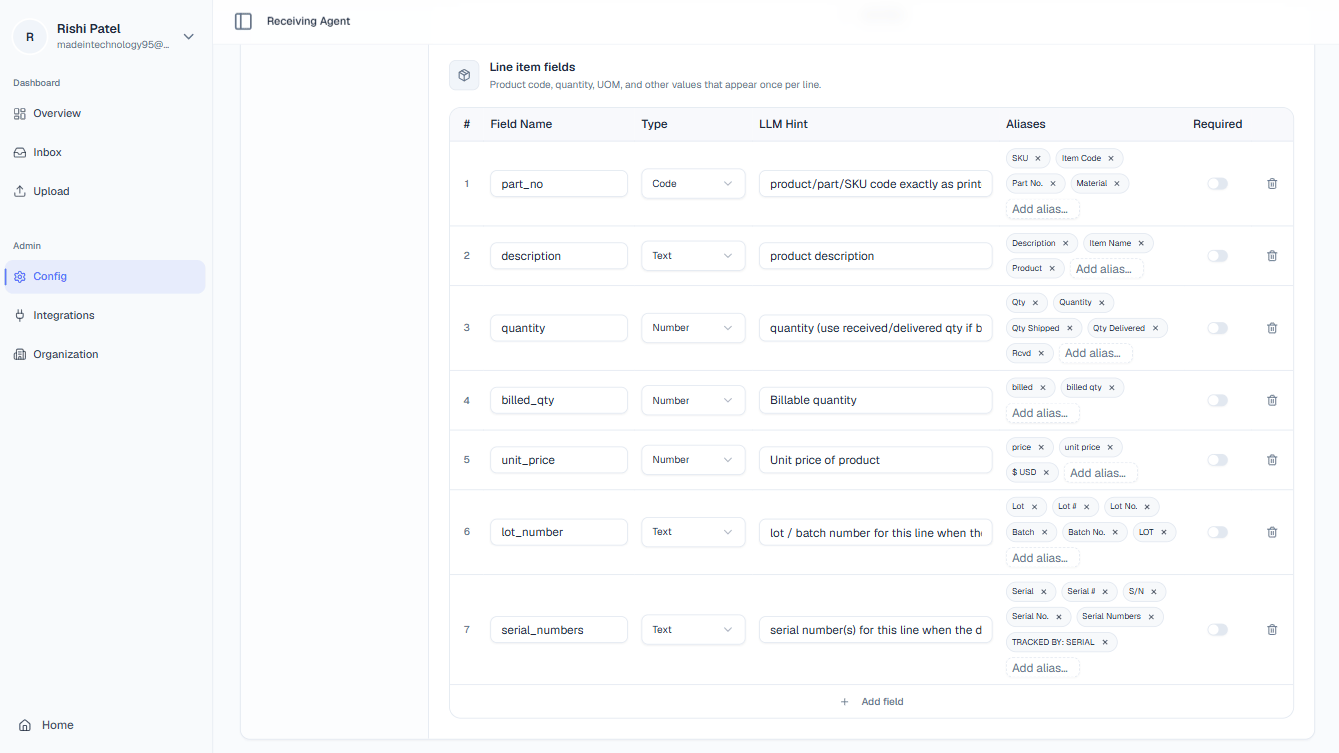 Keeping these two categories separate lets the AI parse table structures from header blocks independently, which improves extraction accuracy on complex documents.
***
## Field Types
Each field you define must be assigned a type. The type tells the AI what format to expect and how to validate the extracted value.
Exact alphanumeric strings with no arithmetic meaning: PO numbers, SKUs, lot numbers, serial numbers. The AI will extract the value precisely as it appears, preserving case and any leading zeros.
Numeric values that may require arithmetic processing: quantities, unit prices, totals. The AI will parse and normalise the value as a float or integer, stripping currency symbols or thousand separators where necessary.
Date values in any common format: ship date, delivery date, invoice date. The AI normalises extracted dates to ISO 8601 (YYYY-MM-DD) regardless of how they appear on the source document.
Free-form natural language: descriptions, supplier names, comments. No normalisation is applied; the raw extracted string is passed downstream.
***
## Required Flag
Keeping these two categories separate lets the AI parse table structures from header blocks independently, which improves extraction accuracy on complex documents.
***
## Field Types
Each field you define must be assigned a type. The type tells the AI what format to expect and how to validate the extracted value.
Exact alphanumeric strings with no arithmetic meaning: PO numbers, SKUs, lot numbers, serial numbers. The AI will extract the value precisely as it appears, preserving case and any leading zeros.
Numeric values that may require arithmetic processing: quantities, unit prices, totals. The AI will parse and normalise the value as a float or integer, stripping currency symbols or thousand separators where necessary.
Date values in any common format: ship date, delivery date, invoice date. The AI normalises extracted dates to ISO 8601 (YYYY-MM-DD) regardless of how they appear on the source document.
Free-form natural language: descriptions, supplier names, comments. No normalisation is applied; the raw extracted string is passed downstream.
***
## Required Flag
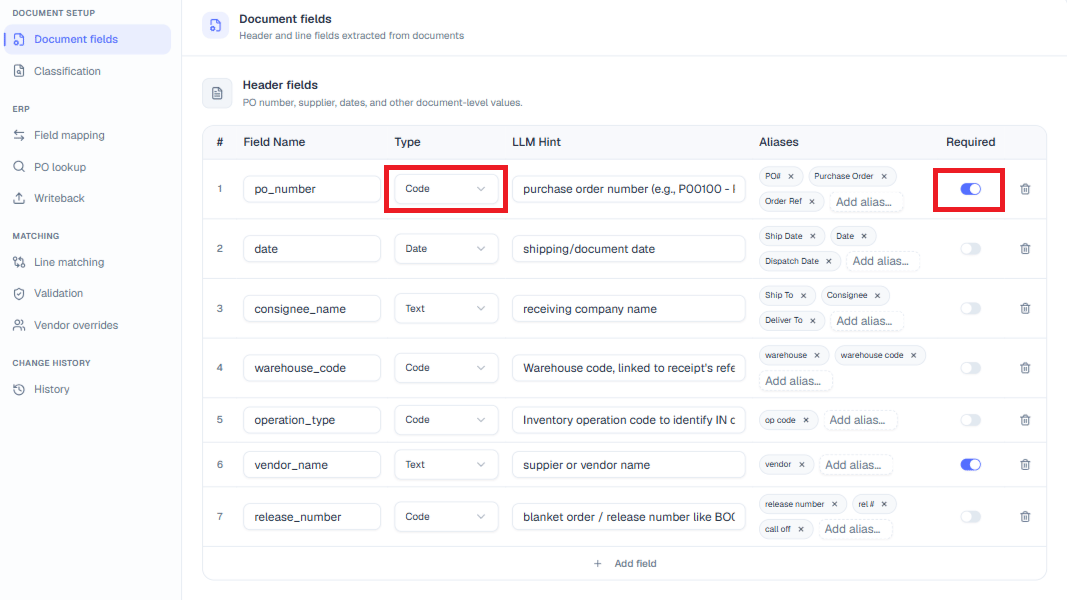 Marking a field **Required** instructs the AI Brain that this field must be found on every document with high confidence. If the AI cannot locate a required field, or finds it but assigns a low confidence score, the document is **automatically flagged for human review** rather than being processed automatically.
Use the Required flag to create a baseline safety net for the fields your matching and ERP lookup logic depends on.
We strongly recommend marking **PO Number** as Required. Without a PO Number, the platform cannot look up the corresponding purchase order in your ERP, and every document from that vendor will require manual intervention.
Start with only the fields that are truly critical to your matching and writeback process — typically PO Number, Part Number, and Quantity — and mark those as Required. You can always add more required fields later once your baseline automation is stable and you have data on how reliably each field appears on your documents.
***
## PO Context Rules
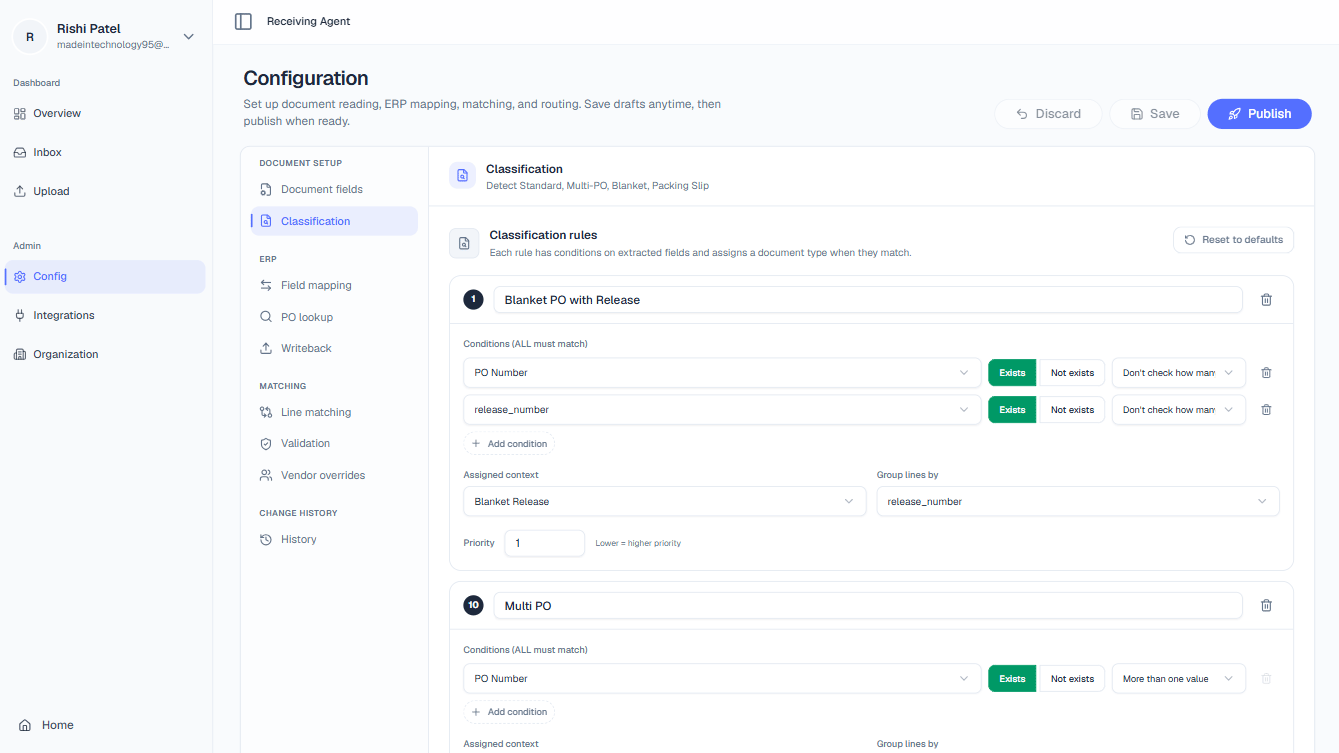
The **Context** tab lets you classify each document's business context so the platform can apply the right processing logic. Rules are evaluated in **priority order**: the rule with the lowest priority number is evaluated first, and the first rule whose conditions match the document is applied — subsequent rules are skipped.
Marking a field **Required** instructs the AI Brain that this field must be found on every document with high confidence. If the AI cannot locate a required field, or finds it but assigns a low confidence score, the document is **automatically flagged for human review** rather than being processed automatically.
Use the Required flag to create a baseline safety net for the fields your matching and ERP lookup logic depends on.
We strongly recommend marking **PO Number** as Required. Without a PO Number, the platform cannot look up the corresponding purchase order in your ERP, and every document from that vendor will require manual intervention.
Start with only the fields that are truly critical to your matching and writeback process — typically PO Number, Part Number, and Quantity — and mark those as Required. You can always add more required fields later once your baseline automation is stable and you have data on how reliably each field appears on your documents.
***
## PO Context Rules
The **Context** tab lets you classify each document's business context so the platform can apply the right processing logic. Rules are evaluated in **priority order**: the rule with the lowest priority number is evaluated first, and the first rule whose conditions match the document is applied — subsequent rules are skipped.
 ### Context Types
| Context Type | When to Use |
| --------------------- | ----------------------------------------------------------------------------------------- |
| **Standard PO** | The document references exactly one purchase order. Most common scenario. |
| **Multi PO** | The document references more than one purchase order on a single delivery. |
| **Blanket Release** | The document references both a blanket PO number and a release number. |
| **Packing Slip Only** | The document contains no PO reference at all. Routes to manual review for PO association. |
### Rule Conditions
Each context rule can be built from one or more conditions:
Check whether a specific extracted field is present or absent in the document. For example, a **Blanket Release** rule might require that a release number field **Exists**.
Check how many distinct values were found for a field across the document:
* **Exactly one value** — the field appears, but all instances have the same value (typical for Standard PO).
* **More than one value** — multiple distinct values were found for the field (typical for Multi PO, where different lines carry different PO numbers).
### Group Lines By (Blanket Releases)
When the context type is **Blanket Release**, you can specify a **Group Lines By** field. The platform will split the extracted line items into separate receipt groups based on the distinct values of that field. For example, setting **Group Lines By** to a release number field ensures that lines for Release 001 and lines for Release 002 are processed and written back to the ERP as separate receipts under the same blanket PO.
### Context Types
| Context Type | When to Use |
| --------------------- | ----------------------------------------------------------------------------------------- |
| **Standard PO** | The document references exactly one purchase order. Most common scenario. |
| **Multi PO** | The document references more than one purchase order on a single delivery. |
| **Blanket Release** | The document references both a blanket PO number and a release number. |
| **Packing Slip Only** | The document contains no PO reference at all. Routes to manual review for PO association. |
### Rule Conditions
Each context rule can be built from one or more conditions:
Check whether a specific extracted field is present or absent in the document. For example, a **Blanket Release** rule might require that a release number field **Exists**.
Check how many distinct values were found for a field across the document:
* **Exactly one value** — the field appears, but all instances have the same value (typical for Standard PO).
* **More than one value** — multiple distinct values were found for the field (typical for Multi PO, where different lines carry different PO numbers).
### Group Lines By (Blanket Releases)
When the context type is **Blanket Release**, you can specify a **Group Lines By** field. The platform will split the extracted line items into separate receipt groups based on the distinct values of that field. For example, setting **Group Lines By** to a release number field ensures that lines for Release 001 and lines for Release 002 are processed and written back to the ERP as separate receipts under the same blanket PO.